
BlockP

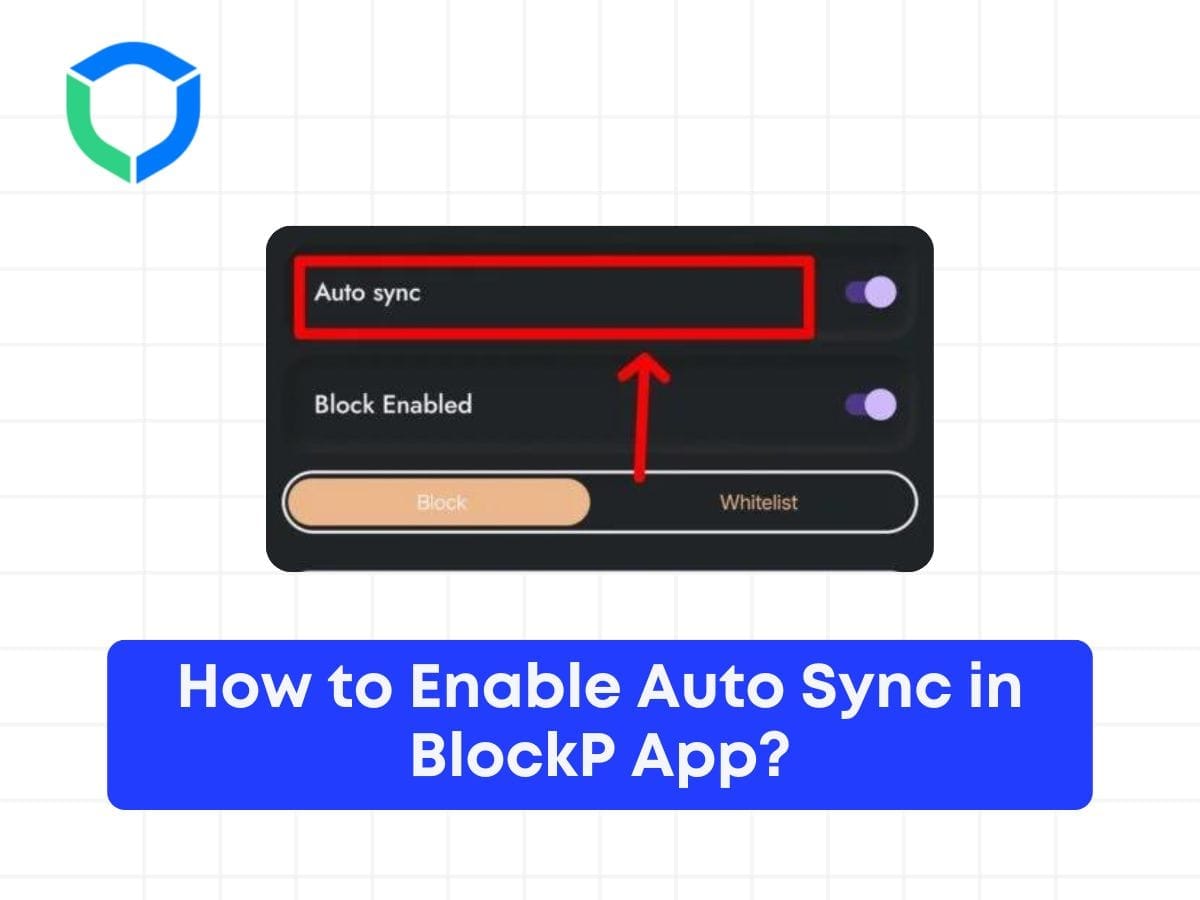
How to Enable Auto Sync in BlockP App?

20K+ reviews on blockp
How to Enable Auto Sync in BlockP App

Table of Contents

This feature makes sure that all settings, customizations, and blacklists are updated across all your devices on which BlockP is present and logged into. When you make changes on one device, such as adding a new website or keyword to the blacklist or setting a password, those changes sync with all other devices connected to your account.

To enable Auto Sync on BlockP App, Follow the below steps

Step 1: Download the BlockP App from google play store

Step 2: Open the BlockP app and give all the permissions

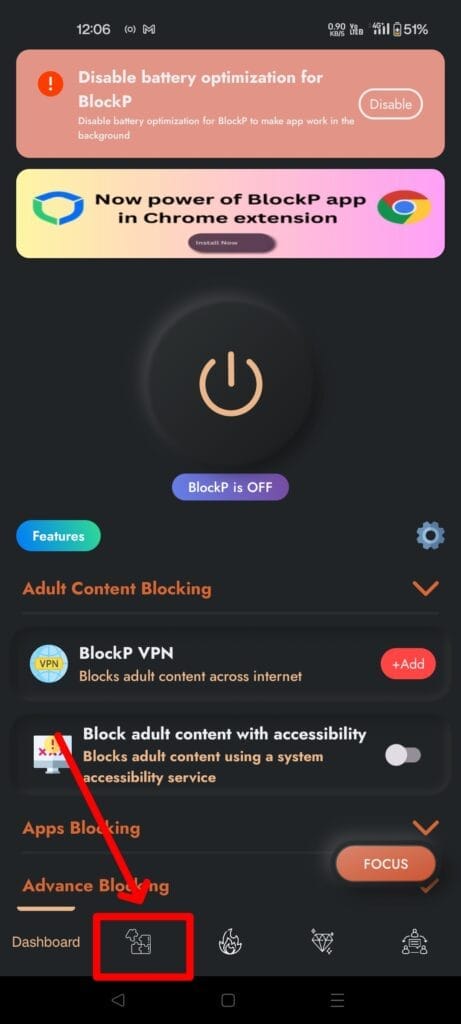
Step 3: Open the features tab as mentioned in below screenshot
auto sync 2

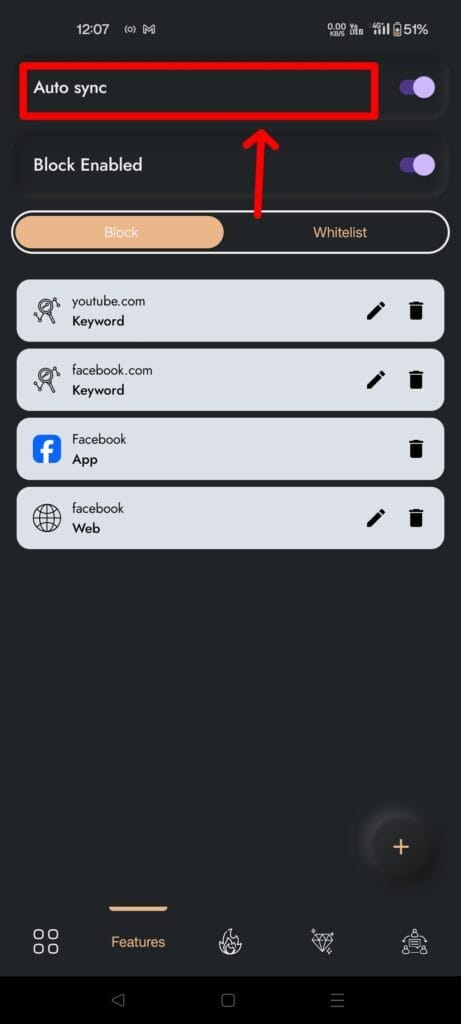
Step 4: Look for Auto Sync Feature at the Top and enable it
auto sync
auto sync

Step 5: Once you enabled it, All your Blocklist and whitelist will be synced with your account and you can access it across multiple BlockP platform
Written By:

Our content team is dedicated to producing high-quality, family-safe, and educational content that supports individuals, parents, and communities in overcoming porn addiction. With deep experience in mental health, digital wellness, and behavior change, our team creates practical and research-backed resources tailored especially for young people, teens, and adults seeking a healthier, more focused life.

Recent Blogs:

Is Watching Porn Once a Day Bad

For many of us, a question like “Is watching porn once a …

10 Best Porn Addiction Apps to Quit Porn & Stay Productive (Free & Paid)

Porn addiction apps are becoming more popular day by day. And this …

How to Block Porn on Android Permanently in 2026

How to block porn on Android? If you are looking for answers …

Does Gooning Lower Testosterone

Does gooning lower testosterone​? It might feel like a strange question if …

Leave a Comment

Your email address will not be published. Required fields are marked *

Scroll to Top